
In the ever-evolving landscape of digital content creation, the pressure to produce stunning, professional-grade visuals is immense. For years, mastering Adobe Photoshop was a daunting task, requiring countless hours of practice to learn complex techniques for tasks as simple as removing an unwanted object or extending a background. However, a revolutionary shift has occurred, fundamentally changing how we interact with this powerful software. This shift is powered by Artificial Intelligence, and it’s not just an incremental update—it’s a complete game-changer.
This comprehensive guide is designed to demystify the AI capabilities within Photoshop, specifically the awe-inspiring Generative Fill and Generative Expand. We will move beyond basic “tricks” and delve into a strategic workflow that will empower you to manipulate images with a level of ease and precision that was once the stuff of science fiction. Whether you are a seasoned photographer, a social media manager, a budding digital artist, or a complete novice, understanding these tools is no longer optional; it’s essential for staying competitive and efficient.
A. The Engine of Imagination: Understanding Photoshop’s Generative AI
Before we dive into the practical steps, it’s crucial to understand what we’re working with. This isn’t a simple “content-aware” tool that samples nearby pixels and makes an educated guess. Photoshop’s Generative AI is built upon a sophisticated diffusion model, a type of machine learning that has been trained on millions of images and their associated text descriptions.
Here’s a simplified breakdown of how it works:
A. Text Prompt Interpretation: When you provide a text prompt, the AI doesn’t “see” images. It interprets your words as a complex set of mathematical vectors and patterns it learned during its training.
B. Noise and Refinement: The AI starts with a field of random visual “noise.” It then iteratively refines this noise, step by step, shaping it to match the patterns and concepts described by your prompt and the context of your existing image.
C. Contextual Blending: Crucially, the AI analyzes the pixels surrounding your selection. It doesn’t just generate a new image in isolation; it creates something new that seamlessly matches the lighting, texture, perspective, and style of your original photo.
This powerful combination of text understanding and contextual awareness is what makes the results so breathtakingly coherent and realistic.
B. Foundational Setup: Preparing for AI-Powered Workflows
To harness this power, you need the right setup. The AI features are part of the newer versions of Photoshop and are cloud-based, meaning your computer’s internet connection is essential for the magic to happen.
A. Software and Subscription: You must have a recent version of Adobe Photoshop (late 2023 onwards) and an active Adobe Creative Cloud subscription. The Generative AI features are included in your subscription.
B. The Workspace: Ensure you are working in the “Essentials” workspace or another layout that gives you easy access to the main toolbar and the right-hand panels. The critical tool for our purposes is the Lasso Tool and its siblings (Polygonal Lasso, Magnetic Lasso).
C. The Generative Fill Interface: Once you make a selection, you will see a new bar appear at the bottom of your canvas labeled “Generative Fill.” This is your command center. Here, you can enter text prompts or leave it blank for the AI to work contextually. You are also presented with three different generated variations to choose from.
C. The Core Techniques: A Step-by-Step Masterclass
Let’s transform theory into practice. We will explore four fundamental, yet powerful, applications of Generative AI that will cover 90% of your editing needs.
Technique 1: The Art of Disappearance – Removing Unwanted Objects
This is the most common and instantly gratifying use of Generative AI. Gone are the days of painstakingly using the Clone Stamp or Healing Brush for minutes on end.
Step-by-Step Process:
A. Make a Precise Selection: Use the Lasso Tool to draw a rough selection around the object you want to remove. There’s no need for pixel-perfect precision. In fact, including a bit of the surrounding area often helps the AI understand the context better.
B. Initiate Generative Fill: With the selection active, click the “Generative Fill” button in the contextual taskbar or find it under the Edit menu.
C. Leave the Prompt Blank: For simple removals, the most effective technique is often to leave the text prompt field completely empty. This instructs the AI to analyze the surrounding pixels and generate content that logically continues the background, effectively “patching” the hole where the object was.
D. Review and Select: Photoshop will generate three options in the Properties panel. Click through each one to find the most seamless result. Often, one will be near-perfect.
E. Non-Destructive Workflow: Crucially, each Generative Fill action creates a new layer. This means your original image remains untouched, and you can always delete the AI-generated layer or mask parts of it if needed.
Pro Tip: For removing objects from complex backgrounds like grass or trees, if the first result isn’t perfect, try again with a slightly larger selection. You can also use a prompt like “natural grass” or “leafy forest floor” to guide the AI more specifically.
Technique 2: Expanding the Canvas – Generative Expand for Perfect Compositions
How many times have you taken a photo only to realize the composition is too tight? Or you need an image in a specific aspect ratio for a social media banner? Generative Expand is the ultimate solution.
Step-by-Step Process:
A. Resize Your Canvas: Go to Image > Canvas Size. Increase the width and/or height of your canvas. You can choose a specific dimension or simply drag the corners of the canvas with the Crop Tool while holding the Alt/Opt key to expand symmetrically. The new area will appear as a checkered transparent background.
B. Select the Empty Area: Use the Magic Wand Tool or a quick Select > All and then Select > Inverse to select only the new, empty parts of the canvas.
C. Apply Generative Fill: Click “Generative Fill.” Again, you can leave the prompt blank for the AI to contextually extend your image, or you can add a guiding prompt.
D. Leverage Prompts for Control: For example, if you are expanding a beach scene, you could use a blank prompt, or you could specify “sandy beach, ocean waves, clear blue sky” to ensure the expansion follows the correct theme.
This technique is phenomenal for creating panoramic views from a single photo or reformatting portraits for different platforms without cropping into the subject.
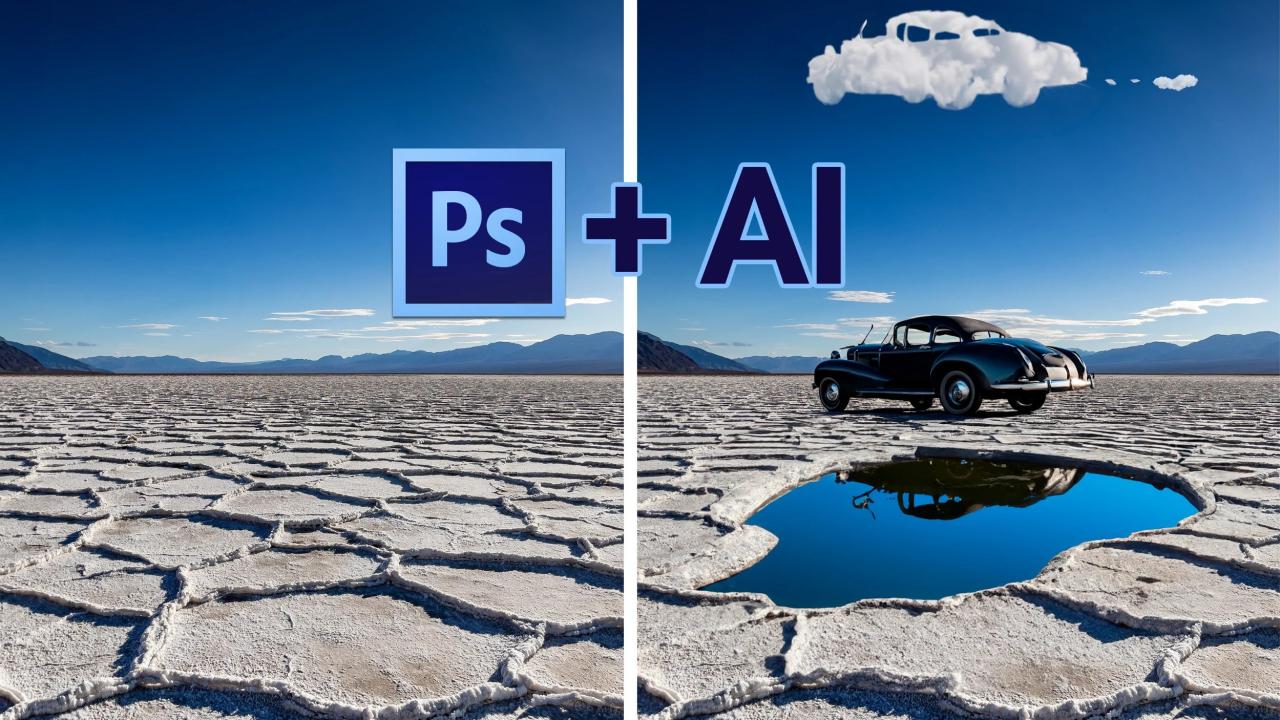
Technique 3: Intelligent Object Addition – Building Worlds from Scratch
This is where the fun truly begins. You are no longer limited by what was in front of the camera; you can now add elements that never existed.
Step-by-Step Process:
A. Create a Space for the New Object: Make a selection in the area where you want the new object to appear. The size and shape of this selection will define the bounding box for the AI’s generation.
B. Craft a Detailed, Descriptive Prompt: This is the key to success. Vague prompts yield vague results. Instead of “dog,” try “fluffy golden retriever puppy sitting on the path.” Instead of “boat,” try “small wooden fishing boat floating on a calm lake at sunset.”
C. Iterate and Refine: Generate your options. If you’re not happy with any, don’t settle. You can click “Generate Again” for three new options, or, more effectively, refine your text prompt. Change adjectives, add details about lighting or texture, or specify the object’s state (e.g., “blooming red rose” vs. “rose bud”).
Example in Action: You have a photo of an empty park bench. Select the space next to the bench and use the prompt: “a black leather purse, a paperback book lying open, soft morning light.” The AI will generate these objects, complete with realistic shadows and interactions with the bench slats.
Technique 4: Creative Background Replacement and Enhancement
Completely changing a background used to be a labor-intensive process involving complex masking and color matching. Generative AI streamlines this dramatically.
Step-by-Step Process:
A. Select and Remove the Old Background: First, use the Select Subject button or your preferred masking technique to isolate your main subject. Inverse the selection so the background is selected.
B. Apply a Transformative Prompt: With the background selected, enter a prompt that describes your new vision. For example, “bustling cyberpunk city street at night with neon lights” or “serene misty mountain landscape.”
C. Harmonize the Scene: The AI will not only generate the new background but will also attempt to blend the lighting and color temperature with your foreground subject. You may need to generate a few times to get the perfect match.
D. Fine-Tuning: Use adjustment layers (like Color Balance, Levels, or Photo Filter) to manually fine-tune the colors and lighting between the subject and the new AI-generated background to create a perfectly cohesive image.
D. Beyond the Basics: Advanced Strategies for Power Users
Once you’ve mastered the core techniques, you can combine them to create truly original artwork.
A. Layering AI Generations: Build a scene one element at a time. Generate a background, then add a middle-ground object on a new layer, and finally a foreground element. This gives you maximum control over the final composition.
B. Using Negative Prompts (Conceptual): While Photoshop doesn’t have a formal “negative prompt” field, you can use your prompt to exclude elements by being very specific. If you’re generating a beach and don’t want people, specify “empty beach, no people.” The more precise your language, the more you steer the AI away from unwanted content.
C. Style and Artist Emulation: You can guide the aesthetic of the generation by referencing art styles or famous artists in your prompt. Try adding phrases like “in the style of Ansel Adams,” “impressionist painting,” or “cyberpunk concept art” to see dramatic shifts in texture, color, and composition.
E. Navigating the Limitations: An Ethical and Practical Guide
As powerful as it is, Generative AI is not a magic wand. Being aware of its limitations is key to using it effectively and ethically.
A. The Uncanny Valley: Sometimes, especially with human hands, faces, or complex textures, the AI can generate results that are almost perfect but feel slightly “off.” Always scrutinize your results at 100% zoom.
B. Handling Repetitive Patterns: The AI can sometimes struggle with logical continuations of highly repetitive patterns like brick walls, tiles, or fabric weaves. It may create inconsistencies.
C. Historical and Factual Accuracy: The AI generates based on its training data, not on factual truth. It should not be used for photojournalism or historical documentation where accuracy is paramount.
D. Ethical Considerations and Copyright:
1. Commercial Use: Be cautious when using AI to generate content for commercial clients. Always have a clear agreement on the use of AI tools.
2. Artist Styles: Using a living artist’s name to generate work in their style raises ethical questions about originality and intellectual property.
3. Content Policy: Adobe’s AI is programmed to avoid generating violent, adult, or infringing content. Your prompts will be filtered accordingly.
F. The Future is Now: Integrating AI into Your Creative DNA
The introduction of Generative AI into a tool as ubiquitous as Photoshop marks a pivotal moment. It lowers the technical barrier to entry, allowing creatives to focus more on their vision and less on the mechanics of execution. The “trick” is no longer a specific button-press; it’s the holistic understanding of how to communicate with the AI, how to craft effective prompts, and how to integrate these new capabilities into a fluid, non-destructive workflow.
By mastering these techniques, you are not just learning a new feature; you are future-proofing your skills. You are transitioning from being solely an image editor to becoming an image director, guiding an AI collaborator to bring your imagination to life. Start experimenting, embrace the iterative process, and unlock a new world of creative possibilities that lies just a prompt away.