In the rhythm of modern life, your iPhone is your lifeline a portal to your work, your social world, your entertainment, and your memories. Yet, nothing disrupts this digital flow quite like the dreaded low-battery warning. That creeping percentage bar can be a source of genuine anxiety, signaling an impending disconnection from the world. While we often dream of a smartphone battery that effortlessly lasts for days, the current reality hinges on intelligent management and proactive care. The secret isn’t a single mythical “trick,” but a comprehensive strategy encompassing your daily habits, your device’s settings, and a deeper understanding of the technology itself.
This definitive guide moves beyond basic tips to deliver a masterclass in iPhone battery management. We will delve into the science of lithium-ion batteries, conduct a deep dive into the settings that drain your power, establish optimal charging protocols, and explore advanced techniques for those critical moments when you need every last percent of juice. Our goal is to transform you from a passive observer of your battery life into an empowered master of it, ensuring your iPhone remains powered through your longest and most important days.
A. Decoding the iPhone Battery: The Science of Power and Longevity
To effectively manage your iPhone’s battery, it’s essential to understand what you’re working with. Every modern iPhone is powered by a rechargeable lithium-ion battery, and knowing its characteristics is the first step toward longevity.
A.1. The Lithium-Ion Lifecycle: Why Batteries Degrade
Lithium-ion batteries are marvels of chemical engineering, but they are consumable components. With each charge cycle (which is defined as using 100% of your battery’s capacity, not necessarily from a single charge), they undergo gradual physical and chemical changes. The lithium ions move between the anode and cathode, and over time, this process slowly reduces the battery’s ability to hold a full charge. This is a natural and inevitable process, but its rate is heavily influenced by three key factors: temperature, charging patterns, and time.
A.2. Demystifying “Battery Health”
Introduced in iOS 11.3, the Battery Health feature is your window into your battery’s condition. Located in Settings > Battery > Battery Health & Charging, it provides two critical metrics:
-
Maximum Capacity: This percentage reflects the battery’s capacity relative to when it was new. A 100% rating means your battery can hold a full charge. As it degrades, this number drops; for example, 85% means your iPhone can only hold 85% of the charge it could when it was new, leading to shorter usage times.
-
Peak Performance Capability: This indicates whether the battery can still deliver adequate power for the phone’s processor. If the battery health deteriorates significantly and experiences an unexpected shutdown, iOS may activate “Performance Management,” which dynamically manages the phone’s peak performance to prevent future shutdowns. You can disable this, but it may lead to more instability.
Understanding that your battery is a finite resource reframes the goal: it’s not about preventing degradation entirely, but about slowing it down as much as possible to preserve your iPhone’s performance and usability for years to come.
B. The Proactive Power Plan: Daily Settings and Habits for Maximum Endurance
The most significant impact on your daily battery life comes from how you configure your iPhone and your interaction habits. Small, consistent adjustments in this area yield the most substantial and noticeable results.
B.1. Conquer the Display: Your Biggest Power Drain
The Super Retina XDR display is beautiful but power-hungry. Taming it is your first line of defense.
-
Enable Auto-Brightness: This is arguably the single most effective display setting. Found in Settings > Accessibility > Display & Text Size, Auto-Brightness allows the iPhone to use its ambient light sensor to perfectly match screen brightness to your environment, preventing it from being unnecessarily bright indoors.
-
Shorten Auto-Lock Duration: Don’t let your screen stay on when you’re not using it. Set Auto-Lock (in Settings > Display & Brightness) to the shortest comfortable duration, such as 30 seconds or 1 minute.
-
Leverage Dark Mode: On iPhones with OLED screens (iPhone X and later), Dark Mode is a power-saver. OLED displays can turn off individual pixels to show true black. With a dark background, significant portions of your screen are not consuming any power. Enable it in Settings > Display & Brightness and set it to a schedule or keep it on permanently.
-
Reduce Motion and Disable Parallax: The subtle zooming and parallax effects on your home screen are visually pleasing but require constant graphical processing. To disable them, go to Settings > Accessibility > Motion and turn on “Reduce Motion.” This also simplifies the screen-lock animation.
B.2. Manage Connectivity: The Silent Battery Vampires
Wireless radios are constantly searching for signals, which consumes a considerable amount of power.
-
Wi-Fi vs. Cellular Data: Whenever possible, use Wi-Fi. It consumes significantly less power than cellular data, especially in areas with a weak cellular signal. When your iPhone has a poor cellular connection, it boosts its radio power to maintain a link, drastically draining the battery.
-
Be Strategic with Bluetooth: If you aren’t actively using a Bluetooth accessory like AirPods or an Apple Watch, turn Bluetooth off via the Control Center. The constant scanning for devices uses background power.
-
The Nuclear Option: Low Power Mode: Low Power Mode (which you can enable manually or set to prompt at 20% and 10% battery) is a fantastic tool. It systematically reduces background activity like mail fetch, background app refresh, visual effects, and automatic downloads. It’s a must-use feature when you need to extend your battery life substantially.
B.3. Master Background Activity: The Unseen Drain
Many apps continue to work even when you’re not actively looking at them. Controlling this is crucial.
-
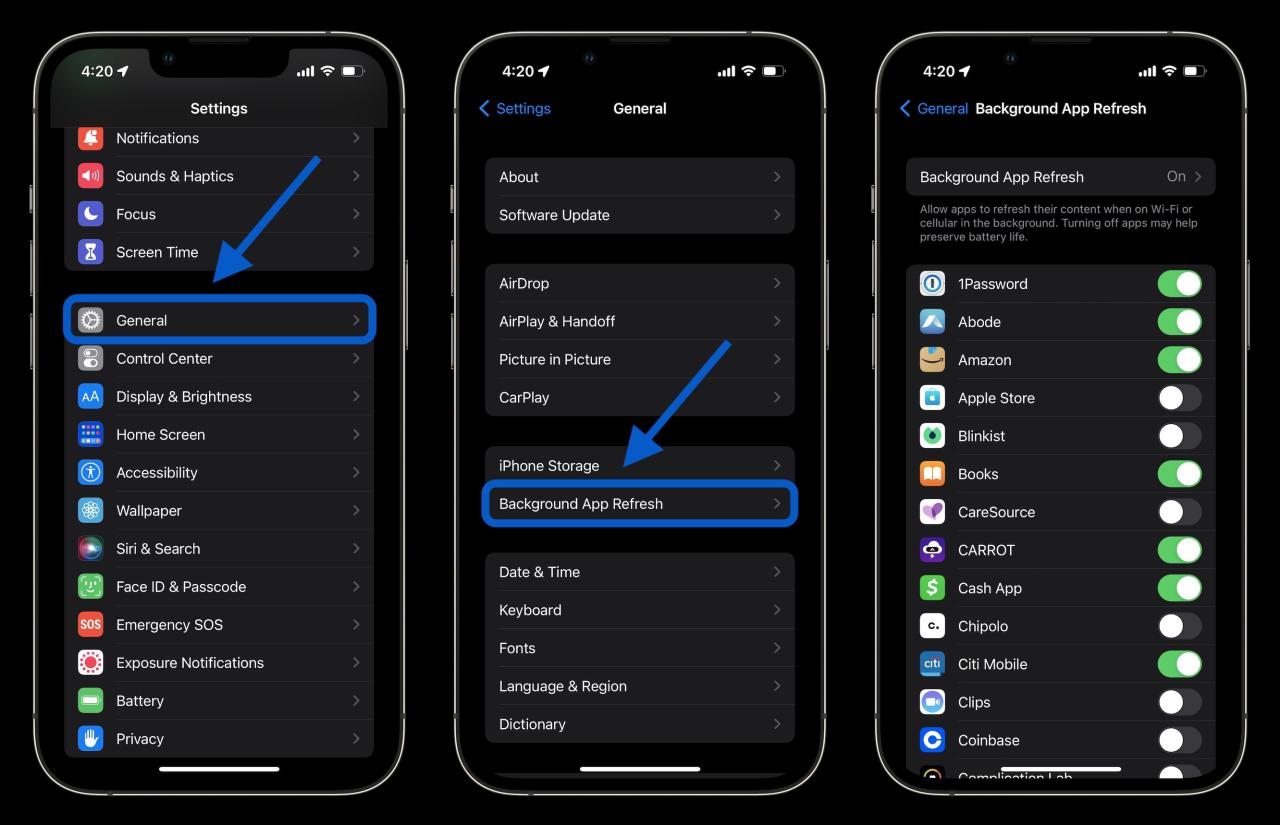
Review Background App Refresh: This feature allows apps to update their content in the background. While convenient for some apps (like messaging), it’s unnecessary for many others. Go to Settings > General > Background App Refresh. You can disable it entirely or, more wisely, disable it on an app-by-app basis for apps that don’t need real-time updates (e.g., games, shopping apps, streaming services).
-
Manage Location Services: GPS is a major power drain. Navigate to Settings > Privacy & Security > Location Services. Here, you can see which apps have access to your location. For each app, choose “Never” or “While Using the App.” Avoid granting location access “Always” unless it’s absolutely essential (like for a navigation app). Pay special attention to “System Services” at the bottom and consider disabling non-essential ones like “Location-Based Apple Ads” or “iPhone Analytics.”
-
Tame Push Notifications: Every time your screen lights up for a notification, it uses power. Audit your notifications in Settings > Notifications. Disable notifications for apps that aren’t critical. For less important apps, consider setting them to “Deliver Quietly” so they appear in the Notification Center without making a sound, vibrating, or lighting up your lock screen.
B.4. Optimize Key Apps and Services
-
Email: If you use the native Mail app, “Push” email delivery (which instantly delivers new messages) is a constant drain. Change your Fetch New Data settings (in Mail accounts or Passwords) to “Fetch” and set it to hourly, or even “Manually” for the ultimate battery savings.
-
Siri & Search: Siri learns from your apps to provide suggestions, but this requires indexing. You can disable “Learn from this App” for individual apps in Settings > Siri & Search to reduce some background processing.
C. The Charging Compendium: Best Practices for Battery Health
How you charge your iPhone is just as important as how you use it. Modern iPhones are intelligent, but you can still optimize your charging habits to minimize long-term wear.
C.1. The 80/20 Rule and Optimized Battery Charging
The concept of keeping your battery between 20% and 80% charge is rooted in battery chemistry. Keeping a lithium-ion battery at extremely high or low states of charge for prolonged periods stresses it. While you don’t need to be obsessive, avoiding regularly draining your battery to 0% or consistently charging it to 100% and leaving it plugged in can help reduce degradation. Apple’s Optimized Battery Charging (in Battery Health settings) is designed to help with this. When enabled, your iPhone learns your daily charging routine (like overnight charging) and will delay charging past 80% until just before you typically unplug it. This prevents the battery from sitting at 100% for hours, thereby preserving its health. You should always leave this feature enabled.
C.2. Heat: The Arch-Nemesis of Your Battery
Excessive heat is the single most damaging environmental factor for a lithium-ion battery. It accelerates the chemical aging process irreversibly.
-
Avoid Charging in Hot Environments: Never charge your iPhone under direct sunlight, on a car dashboard on a hot day, or under your pillow. These scenarios can cause the battery to overheat.
-
Remove Certain Cases While Charging: If you notice your iPhone becoming excessively warm during charging, consider removing the case to improve heat dissipation.
-
Use Certified Accessories: Always use MFi (Made for iPhone) certified cables and chargers. Cheap, uncertified chargers can have poor voltage regulation, leading to excess heat and potential damage to the battery and phone circuitry.
C.3. The Wireless Charging Consideration
While incredibly convenient, wireless charging is less energy-efficient than wired charging. This inefficiency results in more wasted energy, which is dissipated as heat. This constant heat exposure during charging can contribute to faster battery degradation over time compared to using a wired charger. For optimal battery health, a wired connection is preferable, especially for overnight charging. If you use wireless charging, ensure it’s in a cool, well-ventilated area.
D. Advanced Power Protocols: Emergency Measures for Critical Situations
There are times when your battery is low, you’re far from a charger, and you need to squeeze out every possible minute of operation. This is when you deploy these advanced, aggressive power-saving techniques.
D.1. Activate Low Power Mode Immediately
Don’t wait for the 20% prompt. As soon as you realize you’ll be running on a tight battery budget, manually enable Low Power Mode from the Control Center.
D.2. The “Essential Services Only” Lockdown
This is a step beyond standard settings adjustments. For maximum emergency endurance:
-
Turn on Airplane Mode: This instantly disables all wireless radios: cellular, Wi-Fi, and Bluetooth. If you need to make a call or check for messages, you can temporarily disable Airplane Mode, but keep it on as much as possible.
-
Drastic Display Measures: Manually set your brightness to the absolute minimum. Force-touch the brightness slider in the Control Center and drag it all the way down.
-
Kill All Background Apps: While generally not necessary for daily use (iOS is good at managing frozen apps), in an emergency, force-quitting all apps from the app switcher can prevent any potential background processes from restarting.
-
Disable All Non-Critical Notifications: Go to Settings and turn off notifications for everything except your phone and messaging apps.
D.3. Utilize Built-in Power-Saving Features
-
Offline Maps: Download areas for offline use in Google Maps or Apple Maps before you travel. This prevents the constant use of cellular data and GPS for navigation.
-
Download Music and Podcasts: Instead of streaming, which constantly uses data, listen to content you’ve already downloaded to your device.
E. Troubleshooting and Long-Term Maintenance
Sometimes, battery issues are a symptom of a deeper problem. A systematic approach to troubleshooting can identify and resolve these issues.
E.1. Analyze Your Battery Usage
Your iPhone provides a powerful diagnostic tool in Settings > Battery. This screen shows your battery level and activity over the last 24 hours and the last 10 days. More importantly, it shows a breakdown of which apps are using the most power, categorized by “Activity” (on-screen) and “Background Activity.” If you see an app with disproportionately high background usage, it’s a prime candidate for restrictions in Background App Refresh or Location Services.
E.2. The Nuclear Reset: When All Else Fails
If you experience sudden, severe battery drain that you cannot attribute to an app or setting, a software glitch may be the cause.
-
Update iOS: Always ensure you are running the latest version of iOS, as Apple frequently includes battery performance improvements and bug fixes.
-
Force Restart: Perform a force restart (the method varies by model) to clear temporary software caches that might be corrupted.
-
Reset All Settings: If the problem persists, go to Settings > General > Transfer or Reset iPhone > Reset and choose “Reset All Settings.” This will not erase your data, but it will return all your system settings (Wi-Fi, Wallpaper, Notifications, etc.) to their defaults, often resolving obscure software conflicts.
E.3. When to Consider a Battery Replacement
No battery lasts forever. If your iPhone’s Maximum Capacity has dropped below 80% and you are experiencing noticeably shorter battery life or your device is throttling its performance, it is time to consider an official battery replacement from Apple or an Apple Authorized Service Provider. This is a cost-effective way to revitalize an older iPhone and restore its performance and battery life to like-new condition.
Conclusion: Empowerment Through Understanding
Maximizing your iPhone’s battery life is not about finding one secret trick. It is a holistic practice built on a foundation of knowledge about the technology, mindful daily habits, intelligent charging practices, and knowing how to deploy advanced measures in a pinch. By taking control of your display, connectivity, and background activity, you are making conscious choices that directly translate to more power in your pocket. By understanding and leveraging features like Optimized Battery Charging and Low Power Mode, you are working in harmony with your device’s intelligence to ensure its long-term health. Implement the strategies in this guide, and you will transform your relationship with your iPhone, replacing battery anxiety with the confident assurance that your device will be ready whenever you need it.