
In the vast and vibrant ecosystem of mobile technology, Android stands apart as a beacon of personal freedom. While other operating systems offer a uniform, one-size-fits-all experience, Android hands you the keys to your digital kingdom. Yet, a staggering number of users never venture beyond the default wallpaper and standard app grid. They are unaware of the profound transformation that lies just beneath the surface a world where your phone doesn’t just work for you, but truly becomes an expression of you.
This comprehensive guide is designed to be your master key. We will move far beyond basic tips and plunge into the advanced secrets of Android customization. Our journey will empower you to engineer an interface that is not only visually stunning but also hyper-efficient, tailored to your unique workflow and aesthetic desires. Prepare to unlock the full potential of your device and become a true Android virtuoso.
A. Deconstructing the Foundation: Understanding the Launcher
Before we can rebuild, we must understand the core component that dictates your phone’s look and feel: the Launcher. Think of the launcher as your phone’s desktop environment. It controls your home screen, app drawer, dock, and the way you interact with icons and widgets. The stock launcher provided by your phone’s manufacturer (like Samsung’s One UI or Xiaomi’s MIUI) is merely the default option. The real magic begins when you explore third-party alternatives.
Why Replace Your Stock Launcher?
Stock launchers are designed for the masses, balancing features with simplicity. Third-party launchers offer granular control, allowing you to:
-
Radically alter icon packs, sizes, and shapes.
-
Increase or decrease the number of icons and widgets on your home screen grid.
-
Implement sophisticated gesture controls that are invisible yet powerful.
-
Access unique animation styles and transition effects.
Top-Tier Launcher Choices for Power Users:
A. Nova Launcher: The undisputed king for many enthusiasts. Nova Launcher is celebrated for its blazing speed and an almost overwhelming depth of customization options. You can fine-tune everything from scroll effects and animation speeds to creating custom gesture commands (e.g., double-tap to sleep, swipe up to open a specific app).
B. Action Launcher: This launcher innovates with features like “Shutters” (swipe on an icon to see a widget) and “Covers” (replace multiple icons of the same app family with a single, dynamic icon). It brilliantly balances information density with a clean aesthetic.
C. Lawnchair Launcher: For those who adore the clean, intuitive look of Google’s Pixel Launcher but crave more flexibility, Lawnchair is the perfect choice. It incorporates the best of the Pixel experience while adding a wealth of customization features from the community.
D. Smart Launcher: This launcher stands out with its automatic categorization of your app drawer and a unique, circular home screen layout. It’s exceptionally good at organizing your apps for you, reducing clutter and saving time.
B. The Art of Visual Alchemy: Icon Packs, Widgets, and Wallpapers
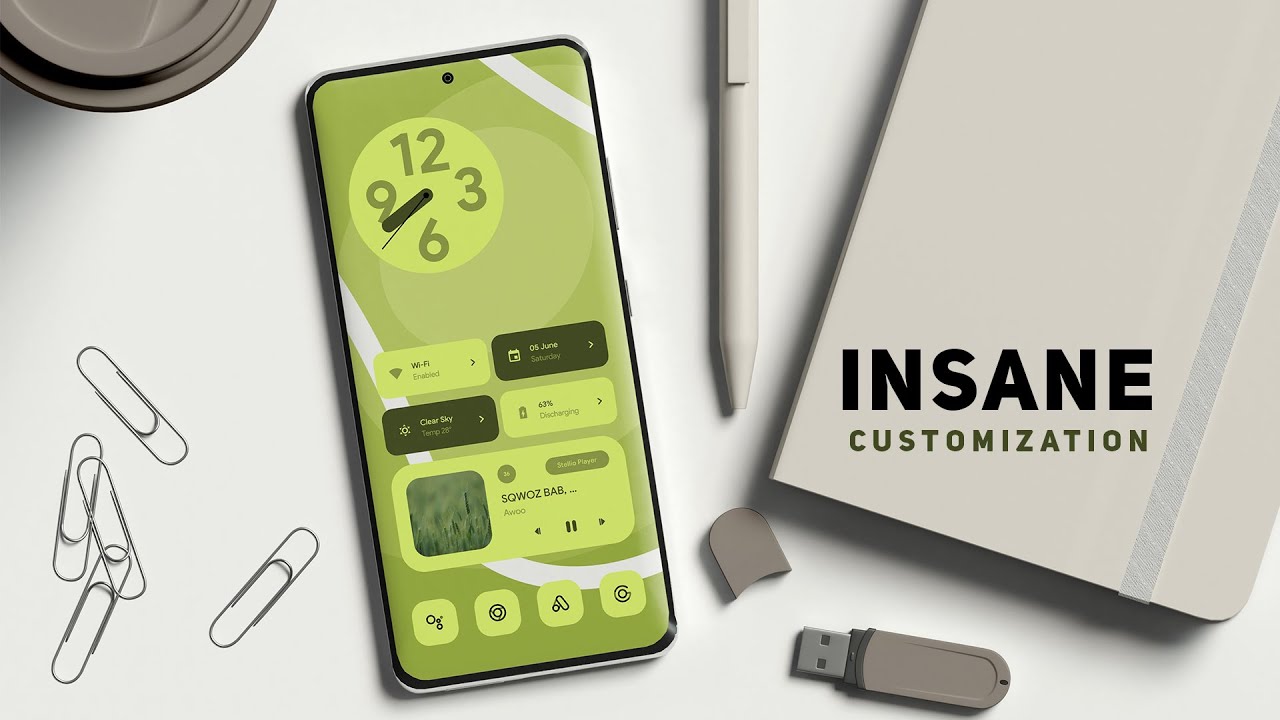
Once you’ve selected a powerful launcher, the next step is to perform a visual overhaul. This is where you define the personality of your device.
1. The Power of Icon Packs
Icon packs are more than just pretty pictures; they are a cohesive design language that unifies your home screen. Replacing the haphazard, multi-vendor icons of your apps with a single, consistent style creates an immediate and dramatic visual impact.
-
How to Apply: After purchasing or downloading a free icon pack from the Play Store, your launcher will allow you to apply it globally. In Nova Launcher, for instance, you long-press on an icon > Edit > tap the icon image > choose from your installed packs.
-
Recommendations:
-
Minimalist: Lines (free/paid), Whicons (free)
-
Colorful & Detailed: Borealis (paid), Viral (paid)
-
Dark & Moody: DARKMATTER (paid), OxyPie (free)
-
2. The Functionality of Widgets
Widgets are the workhorses of your home screen, bridging the gap between style and substance. They provide at-a-glance information and quick actions without needing to open an app.
-
Essential Widgets: Calendar, Weather, Clock, Music Player, and To-Do List widgets are staples.
-
Advanced Widget Tools: To achieve a truly curated look, use apps like KWGT Kustom Widget Maker. This is a powerhouse application that lets you design your own widgets from scratch or customize thousands of community-made presets. You can control every element fonts, colors, shapes, and data sources to create a widget that perfectly matches your theme.
3. The Canvas: Wallpapers
Your wallpaper is the backdrop against which your entire setup is displayed. The right wallpaper can make your icons and widgets pop.
-
Source Your Wallpapers Intelligently: Don’t just use the first image you find. Use apps like Wallrod, Backdrops, or Resplash (which connects to Unsplash) for high-quality, curated wallpapers.
-
Dynamic Wallpapers: Consider using live wallpapers that change throughout the day or respond to your touch. Apps like Waveful offer beautiful, animated options.
-
The Parallax Effect: Many launchers support a parallax effect, where your wallpaper moves slightly as you swipe between home screens, adding a sense of depth.
C. Mastering Navigation: Gestures and Shortcuts
Efficiency is the hallmark of a master. Replacing tedious taps with fluid gestures is a game-changer for one-handed use and overall speed.
A. System-Wide Gestures (Android 10 and above):
Modern Android has built-in gesture navigation that replaces the traditional back, home, and recent apps buttons. You can swipe from the sides to go back, swipe up from the bottom to go home, and swipe up and hold for recent apps.
B. Launcher-Specific Gestures:
This is where your custom launcher shines. You can assign actions to gestures performed on the home screen.
-
Double-tap: Lock the screen (saves your physical power button).
-
Pinch-in: Open the app drawer.
-
Swipe down: Expand the notification shade.
-
Two-finger swipe up: Launch a specific app, like your camera.
C. Advanced Gesture Tools:
For system-level control beyond what your launcher offers, apps like Fluid Navigation Gestures take it a step further. They create invisible, customizable gesture zones along the edges of your screen, allowing you to perform actions from within any app.
D. The Audio Identity: Crafting a Unique Soundscape
Visuals are only half the experience. The sounds your phone makes contribute significantly to its personality.
-
System Sounds: Go beyond the default rings, notifications, and alarms. You can find sound packs online or create your own. Consider a subtle, futuristic blip for notifications or a calming melody for your alarm.
-
Per-App Notification Sounds: Assign unique sounds to messages from specific contacts or apps. This allows you to identify the importance of a notification without even looking at your phone.
-
Focus on Quality: Use high-quality audio files. A crisp, well-mastered sound is far less annoying than a tinny, compressed one.
E. The Dark Art of Automation: Unleashing Tasker
If you truly want to ascend to the pinnacle of Android mastery, you must acquaint yourself with Tasker. This application is, without exaggeration, a platform for programming your phone’s behavior based on contexts (profiles). It has a steep learning curve but offers near-limitless power.
Practical Automation Scenarios:
A. The Smart Driving Profile: When Tasker detects your phone connecting to your car’s Bluetooth, it can: automatically launch your music/podcast app, set media volume to 80%, turn on GPS, and read out your new text messages aloud.
B. The Ultimate Bedtime Mode: Between 11 PM and 7 AM, if your phone is charging and face-down, Tasker can enable Do Not Disturb (allowing only calls from favorites), set the volume to zero, and dim the screen brightness to its absolute minimum.
C. Location-Based Settings: When you arrive at your workplace (based on GPS or Wi-Fi connection), Tasker can automatically silence your ringer, turn off WiFi to save battery if the signal is weak, and send a pre-written “I’ve arrived” message to your family.
D. The Battery Saver Extreme: If your battery level drops below 15%, Tasker can enact a series of emergency measures: turn off Bluetooth, GPS, and Mobile Data, kill background apps, and switch to an ultra-power-saving grayscale display mode.
While Tasker is the most powerful, beginners can start with more accessible apps like IFTTT or MacroDroid to dip their toes into the world of automation.
F. Delving Deeper: Root, ADB, and System-Level Tweaks
Warning: Proceed with caution. These methods can void your warranty and carry a risk of rendering your device unstable if done incorrectly.
For those who refuse to acknowledge any limits, the final frontier of Android customization requires deeper system access.
A. Root Access: “Rooting” your Android phone is the equivalent of “jailbreaking” on iOS. It gives you superuser administrative privileges, allowing you to:
-
Remove Pre-installed Bloatware: Permanently delete carrier and manufacturer apps you never use.
-
Install Custom ROMs: Replace your entire Android operating system with a pure, feature-rich, or updated version like LineageOS.
-
Use Powerful Root-Required Apps: Apps like Greenify (to aggressively hibernate apps) or Titanium Backup (for comprehensive system backups) require root.
-
Apply System-Wide Themes: Use Substratum or similar theming engines to change the color scheme and design of system menus, settings, and even some third-party apps.
B. Android Debug Bridge (ADB): ADB is a command-line tool that lets you communicate with your device from a computer. You don’t need root to use it for some powerful tweaks, making it a safer alternative. Through ADB, you can:
-
Deactivate Bloatware without root (the apps remain but are hidden and disabled).
-
Change screen resolution and density for a sharper look or more on-screen content.
-
Force enable hidden system features or disable animations for a perceived performance boost.
G. The Final Masterpiece: Curating a Cohesive Theme
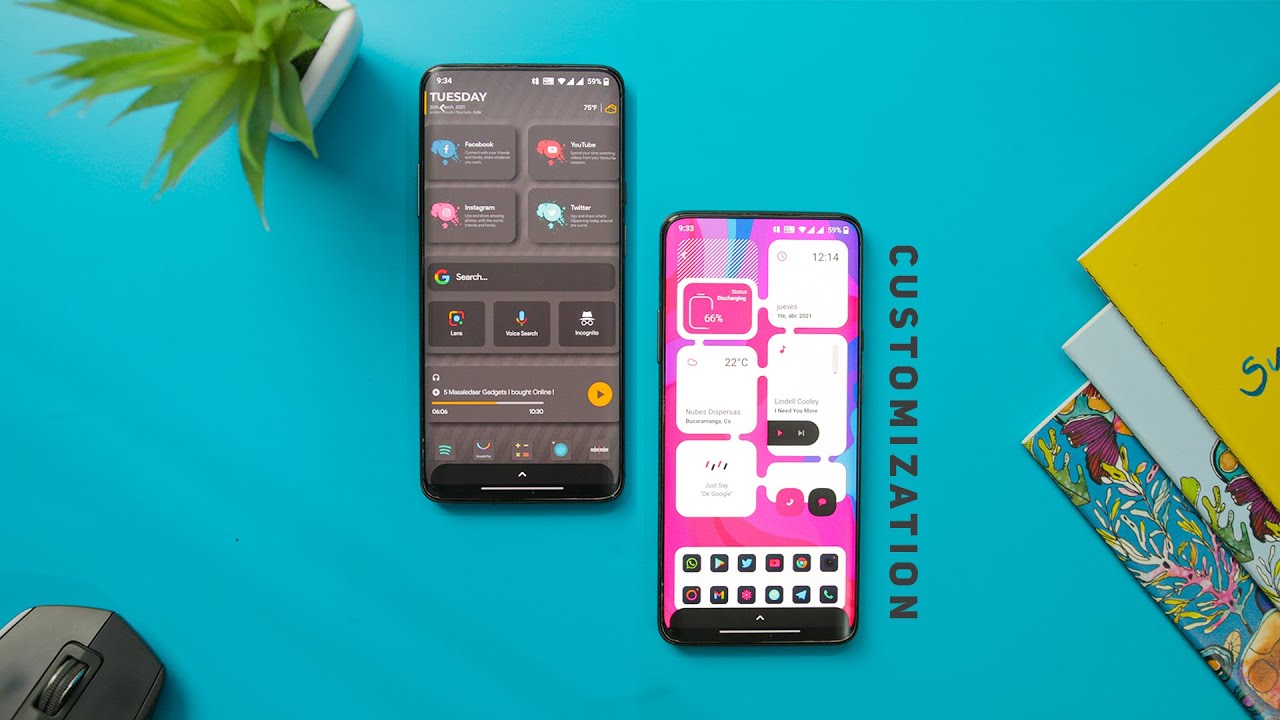
With all these tools at your disposal, the final and most crucial step is curation. The most impressive setups are not just a collection of every feature possible; they are a harmonious blend of form and function.
-
Choose a Design Philosophy: Decide on a theme. Do you want a Minimalist setup with a single color accent and plenty of negative space? A Futuristic theme with glowing lines and dark backgrounds? Or an Informational layout packed with data-rich widgets?
-
Maintain Consistency: Ensure your icon pack, widget styles, wallpaper, and even your font choice all follow the same visual language. If your theme is “Dark Cyberpunk,” a pastel-colored, cartoonish icon will break the immersion.
-
Prioritize Usability: A beautiful home screen is useless if it takes you five taps to open your most-used app. Always design with your daily workflow in mind. Place your essential apps and contacts in easily accessible locations and use folders to manage the rest.
Conclusion: Your Phone, Your Signature
Android customization is a journey, not a destination. It is an ongoing process of refinement and personal expression. By mastering the launcher, wielding the power of widgets and icon packs, embracing the efficiency of gestures, automating your life with tools like Tasker, and potentially venturing into system-level modifications, you transcend being a mere user. You become a creator, an architect of your own digital experience.
Your smartphone is the most personal computer you own. It deserves to be more than a generic tool. It deserves to be a masterpiece, uniquely and unmistakably yours. Start your journey today, experiment without fear, and unlock the incredible potential that has been waiting dormant in your pocket.